Windows 11 requires more than a fast processor and enough storage. A supported PC also needs UEFI firmware, Secure Boot capability, and Trusted Platform Module version 2.0. The safest compatibility test is Microsoft's PC Health Check app, followed by manual checks when it identifies a problem.
Official Windows 11 minimum requirements
Microsoft's current Windows 11 specifications page lists these core minimums:
| Component | Minimum requirement |
|---|---|
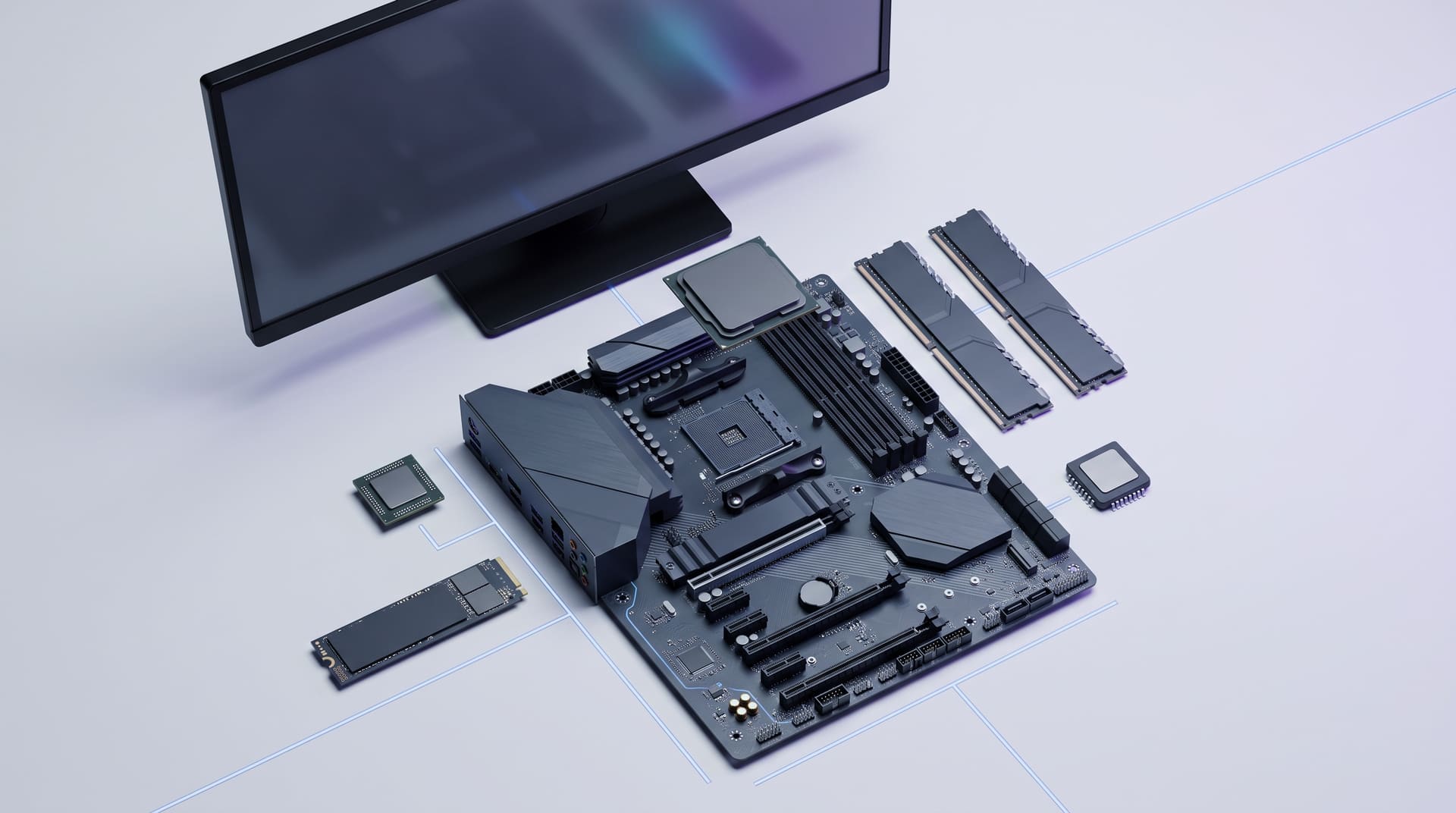
| Processor | 1 GHz or faster, with 2 or more cores, on a compatible 64-bit processor or system on a chip |
| Memory | 4 GB RAM |
| Storage | 64 GB or larger storage device |
| System firmware | UEFI, Secure Boot capable |
| TPM | Trusted Platform Module version 2.0 |
| Graphics | DirectX 12 or later compatible, with a WDDM 2.0 driver |
| Display | High-definition 720p display, larger than 9 inches diagonally, 8 bits per color channel |
| Internet and account | Internet access is required for updates and some features; setup requirements vary by edition and use |
The processor must also appear on Microsoft's supported processor list for the relevant architecture. Microsoft publishes separate lists for supported Intel processors, supported AMD processors, and supported Qualcomm processors.
These are minimums, not a promise that every application will run well. Large games, creative tools, development environments, and virtual machines can require far more memory, storage, and graphics performance.
Start with PC Health Check
Microsoft's PC Health Check app gives the clearest supported answer for a Windows 10 PC.
- Download PC Health Check from Microsoft's Windows 11 specifications page.
- Install and open it.
- Find the Windows 11 section and select Check now.
- Open the result details if the PC does not qualify.
PC Health Check evaluates the machine as a whole. A simple specification list can miss details such as an unsupported processor generation or a firmware feature that exists but is disabled.
Note
Run Windows Update and install manufacturer-recommended firmware updates before making a final decision. A firmware update can improve detection, but it cannot turn unsupported hardware into supported hardware.
Check TPM 2.0 manually
TPM 2.0 provides hardware-backed security used by Windows features including measured boot and credential protection. Many PCs already have TPM 2.0, but the firmware setting may be disabled.
To check the installed TPM:
- Press Windows + R.
- Enter
tpm.mscand press Enter. - Look for Specification Version in the TPM Manufacturer Information area.
- Confirm it says 2.0.
If Windows reports that a compatible TPM cannot be found, consult the PC or motherboard manufacturer's instructions. Firmware may label the setting Intel PTT, AMD fTPM, Security Device, or Trusted Computing. Microsoft's TPM 2.0 guidance explains the check and common firmware terminology.
Do not clear an existing TPM casually. Clearing it can remove keys used to protect data and credentials. Back up data and BitLocker recovery information before changing security firmware settings.
Check UEFI and Secure Boot
Secure Boot helps prevent unauthorized software from loading early in the boot process. Windows 11 requires a PC that is UEFI and Secure Boot capable.
To inspect the current state:
- Press Windows + R.
- Enter
msinfo32and press Enter. - In System Information, find BIOS Mode and Secure Boot State.
- BIOS Mode should be UEFI. Secure Boot may need to be enabled in firmware.
Microsoft's Secure Boot check describes the requirement. If BIOS Mode says Legacy, do not simply switch modes without a migration plan. Disk layout and boot configuration may need to change, and a careless firmware change can make Windows temporarily unbootable.
Check memory, storage, graphics, and display
Open Settings > System > About to see installed RAM and processor details. Use Settings > System > Storage to check capacity and free space.
The 64 GB storage requirement is the device's capacity, not a recommendation to start an upgrade with almost no free space. Windows setup needs working space, and future feature and security updates need room too. Keep a current backup and free additional space before installation.
For graphics information, run dxdiag. The Display tab shows the graphics
device and driver model. Hardware manufacturers remain the best source for a
current compatible driver.
Why a PC can fail even when the headline numbers look sufficient
The most common reasons are:
- the processor model is not on Microsoft's supported list;
- TPM 2.0 is missing or disabled;
- the PC boots in Legacy BIOS mode instead of UEFI;
- Secure Boot capability is unavailable or disabled;
- the system drive is too small or has too little working space;
- a driver, application, or safeguard hold blocks the upgrade; or
- the device is managed by an organization that controls upgrades.
Windows Update may delay an upgrade even when the hardware qualifies. Microsoft uses safeguard holds when a known compatibility issue could create a poor experience. Waiting for the offer in Windows Update is generally safer than forcing the upgrade around a known hold.
Minimum requirements versus a useful specification
Passing the minimum check answers one question: whether Microsoft supports the device for Windows 11. It does not guarantee that the computer is well-sized for your applications.
Plan beyond the minimum when the workload includes:
- large games or media libraries that need substantial free storage;
- photo or video editing that benefits from more memory and graphics capacity;
- software development with containers, emulators, or virtual machines;
- accessibility or specialist peripherals that need current drivers; or
- business applications with their own processor, memory, or security rules.
Before upgrading a work-critical PC, list the applications and peripherals you must keep. Check each vendor's Windows 11 support statement, license rules, and driver availability. A compatible operating system cannot compensate for an unsupported scanner, accounting plug-in, VPN client, or specialist device.
Check upgrade readiness, not just eligibility
Compatibility is strongest when hardware, software, recovery, and licensing are all ready together. Confirm that:
- the current Windows installation is healthy and updated;
- important apps have supported Windows 11 versions;
- the device manufacturer publishes Windows 11 drivers or support;
- the system has more free space than the bare minimum;
- you know how to restore the backup if setup fails;
- encryption recovery keys are available; and
- the intended Home or Pro edition matches the license.
For a new PC purchase, ask for the exact processor model instead of relying on labels such as “64-bit” or “Windows ready.” Compare that model with Microsoft's supported list and verify TPM 2.0 and Secure Boot in the manufacturer's specification.
What to do if the PC is not supported
First, distinguish between a feature that is disabled and hardware that is unsupported. A manufacturer-supported firmware change may enable TPM or Secure Boot. An unsupported processor is a different issue.
Microsoft explains that installing Windows 11 on hardware that does not meet the minimum requirements is not recommended. Such a device is unsupported and is not guaranteed to receive updates. Review Microsoft's published Windows 11 requirements before considering any unofficial workaround.
We do not recommend bypassing TPM, Secure Boot, or processor checks. A license does not make unsupported hardware supported, and activation does not confirm compatibility.
Safer options include:
- continue using a currently supported operating system appropriate for the PC;
- update eligible firmware with the manufacturer's instructions;
- replace the incompatible component when practical; or
- choose a compatible device.
Before you install Windows 11
Once PC Health Check reports compatibility:
- Back up irreplaceable files and verify the backup.
- Save recovery keys for any encrypted drives.
- Update Windows, device drivers, and firmware from trusted sources.
- Confirm the Windows edition your license covers.
- Ensure the device has reliable power, internet access, and enough free space.
- Follow our supported Windows 11 installation guide.
If you already installed the correct edition and need to license it, continue with How to activate Windows 11.
Frequently asked questions
Can Windows 11 run without TPM 2.0?
TPM 2.0 is part of Microsoft's minimum requirements. Unofficial workarounds do not make a device supported and may affect reliability, support, and updates.
Is 4 GB of RAM enough for Windows 11?
It meets the published minimum, but it may not provide a comfortable experience for demanding multitasking or applications. Select hardware for the workload, not only for the installation floor.
Does Secure Boot have to be turned on?
The official requirement says the firmware must be UEFI and Secure Boot capable. PC Health Check gives the supported compatibility result for the specific device. Follow the manufacturer and Microsoft guidance before changing boot settings.
Does an activation key prove my PC is compatible?
No. Compatibility and licensing are separate. PC Health Check and Microsoft's hardware requirements determine support; activation confirms the installed edition has a valid license.